
Remote Support
At MMD Computer Center, we can securely connect to your computer to diagnose and resolve minor technical issues.
We use Microsoft Quick Assist, a secure remote support tool built directly into Microsoft Windows. This allows our technician to safely view or control your computer with your permission.
Only start a remote support session after speaking with an MMD technician (Call 352-750-3707 after following the instructions below)
How to Start Remote Support
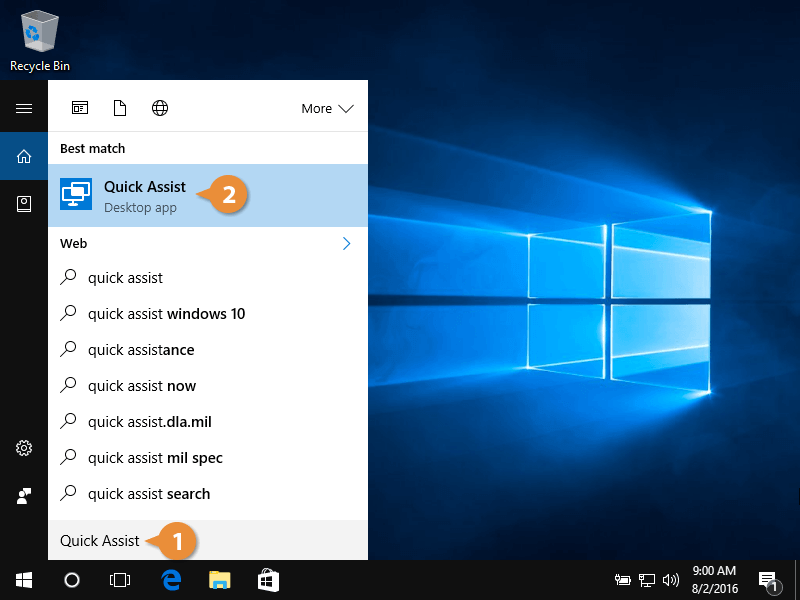
Step 1: Open the Start Menu
-
Click the Start button in the bottom-left corner of your screen.
-
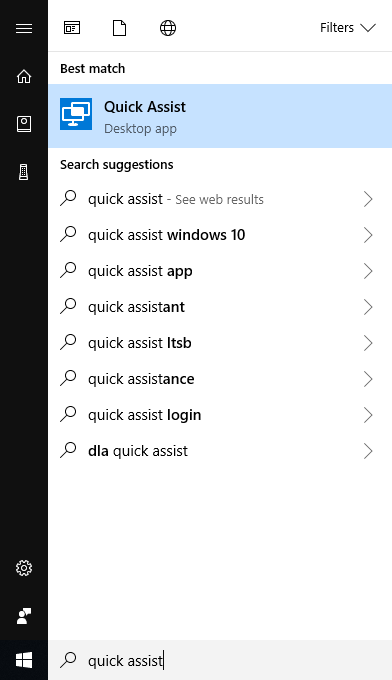
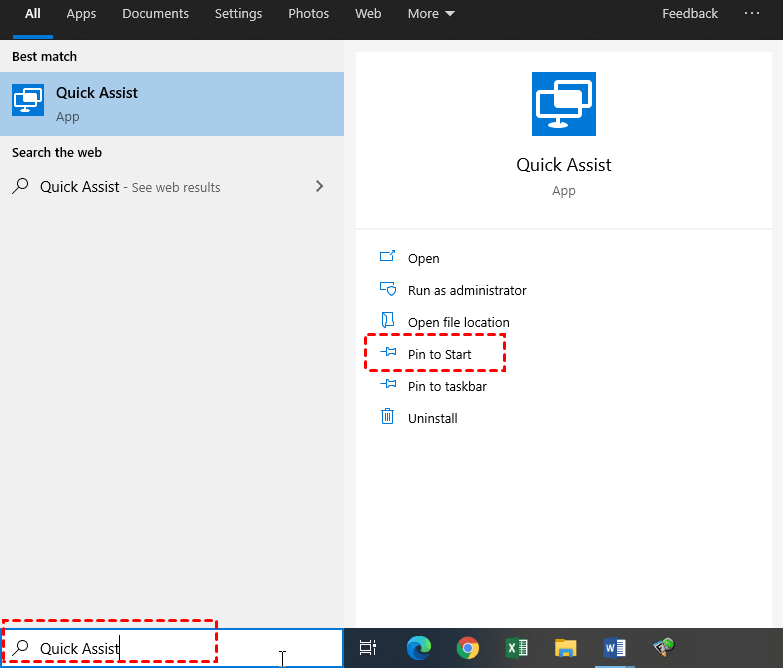
Start typing Quick Assist.
-
Click the Quick Assist App when it appears in the list.
Tip: You can also press CTRL + Windows Key + Q to open it instantly.
How To Start A Support Session
Step 1: Open the Start Menu
Click the Start button on your Windows computer.
Begin typing:
Then click the Quick Assist app when it appears.
? Shortcut: Press CTRL + Windows Key + Q to open it instantly.
Step 2 Select Get Help
When the Quick Assist window opens:
-
Click Get Help
-
Enter the 6-digit security code provided by your MMD technician via phone call.
-
Click Submit
Step 3: Allow the Connection
You will be asked to approve the remote session.
Choose:
-
View Screen technician can only see your screen
-
Full Control technician can control the mouse and keyboard to fix the issue
Click Allow to begin the support session.
Security Notice
For your safety, only allow remote access after contacting MMD Computer Center directly.
Never grant remote access to anyone who contacts you unexpectedly claiming to be technical support.